


UltraViewer MSI: Deploying software installations through Group Policy Object (GPO) without an .MSI file
Many customers ask whether UltraViewer is available as an MSI file and how to deploy it with Group Policy (GPO). UltraViewer does not currently provide an .msi installer, so it cannot be deployed with the GPO Software installation feature, which can assign only Windows Installer (.msi) packages to computers.
However, the UltraViewer installer is built with Inno Setup and supports standard silent-installation switches, so you can still install it on many domain computers with a GPO. This article describes two methods:
-
Method A (recommended): a Group Policy Preferences immediate task that installs UltraViewer without restarting the computers.
-
Method B: a computer startup script that installs UltraViewer at the next restart.
Both methods use the same shared folder, installation script and GPO; only Step 4 is different.
Silent installation command
To install UltraViewer silently, run the installer with the following switches:
UltraViewer_setup_en.exe /VERYSILENT /SUPPRESSMSGBOXES /NORESTART
The switches have the following meaning:
| Switch | What it does |
|---|---|
/VERYSILENT |
Installs without showing the setup wizard or the installation progress window. |
/SILENT |
Installs without the wizard but still shows the progress window. |
/SUPPRESSMSGBOXES |
Suppresses most message boxes (Setup picks the default answer), so Setup does not wait for someone to click a button. Only effective together with /SILENT or /VERYSILENT. |
/NORESTART |
Prevents Setup from restarting the computer, even if a restart is needed. |
/LOG="path" |
Writes a detailed installation log to the specified file. Useful for troubleshooting. |
Note: Switches must start with /. Unknown switches are ignored without an error message, so if you misspell a silent switch, the normal setup wizard appears instead of a silent installation. For the full list of switches, see the Inno Setup documentation.
Before you start
-
A domain controller, or a computer with RSAT: Group Policy Management Tools installed, and an account that can create and link GPOs (for example, a member of Domain Admins).
-
The target computers are in an organizational unit (OU). In this example, they are in the Workstations OU of the
example.localdomain. -
A shared folder that the target computers can read (see Step 1).
-
The latest UltraViewer installer, version 6.6.70 or later. Earlier versions could install an additional optional application when Setup was run in silent mode.
Note: Why not a logon script? UltraViewer Setup requires administrator rights because it installs into Program Files and registers the UltraViewer Windows service. Logon scripts (User Configuration) run with the permissions of the signed-in user, so on computers where users are not local administrators the installation fails, or a UAC prompt appears at every logon. Both methods in this article are configured under Computer Configuration and run Setup under the Local System account, so Setup can install UltraViewer silently, without a UAC prompt.
Step 1. Put the installer on a shared folder
-
Download the latest installer from https://www.ultraviewer.net/en/download.html. The file name contains the version, for example
UltraViewer_setup_6.6_en.exe. -
Rename the file to
UltraViewer_setup_en.exe. This step is optional, but it lets you replace the file with a newer version later without editing the script. Computers that install UltraViewer after that get the new version; computers that already have UltraViewer are not updated by this script. -
On a file server (FS01 in this example), create the folder
C:\Software\UltraViewerand copy the installer into it. Then shareC:\Softwarewith the share name Software. You will also save the installation script from Step 2 in this folder. -
Give the computer accounts read access to the share. In the folder's Properties, go to Sharing > Advanced Sharing > Permissions and grant Domain Computers the Read permission.
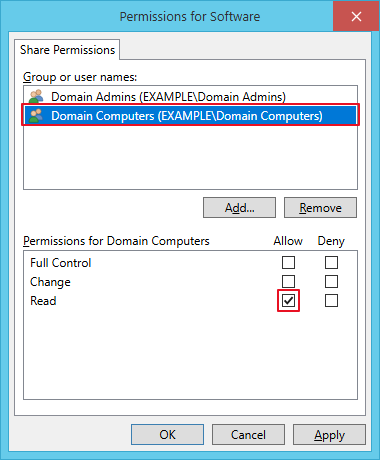
Then, on the Security (NTFS) tab of
C:\Software, grant Domain Computers the Read & execute permission. With both methods, the installation runs under the Local System account and accesses the share as the computer account, so the computers, not the users, need access to the script and the installer.
In this example, the installer path is:
\\FS01\Software\UltraViewer\UltraViewer_setup_en.exe
Tip: Always use a full UNC path in the form \\server\share\folder\file. A local path such as C:\... or a UNC path without the share name does not work on client computers.
Step 2. Create the installation script
Open Notepad and paste the following script. Change the SETUP line to the path of your installer, then save the file as Install-UltraViewer.cmd in the shared folder from Step 1 (in Save as type, select All files).
@echo off
rem Install UltraViewer silently if it is not installed yet
set "SETUP=\\FS01\Software\UltraViewer\UltraViewer_setup_en.exe"
set "KEY=Microsoft\Windows\CurrentVersion\Uninstall\{E0FABD74-083B-47F4-AC5B-CA4237BF8913}_is1"

reg query "HKLM\SOFTWARE\WOW6432Node\%KEY%" >nul 2>&1 && exit /b 0
reg query "HKLM\SOFTWARE\%KEY%" >nul 2>&1 && exit /b 0

"%SETUP%" /VERYSILENT /SUPPRESSMSGBOXES /NORESTART /LOG="%WINDIR%\Temp\UltraViewer_install.log"
The script first checks for the UltraViewer uninstall registry key (on both 64-bit and 32-bit Windows), so UltraViewer is installed only once. When the script runs again later, it exits immediately. Setup writes its log to C:\Windows\Temp\UltraViewer_install.log.
In this example, the full path of the script is:
\\FS01\Software\UltraViewer\Install-UltraViewer.cmd
Step 3. Create a GPO and link it to the computers' OU
-
On the domain controller (or the computer with RSAT), press Windows + R, type
gpmc.mscand press Enter.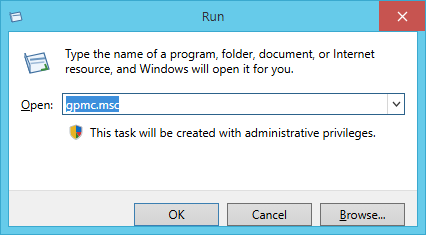
-
Expand Forest: example.local > Domains > example.local, right-click the Workstations OU and click Create a GPO in this domain, and Link it here...
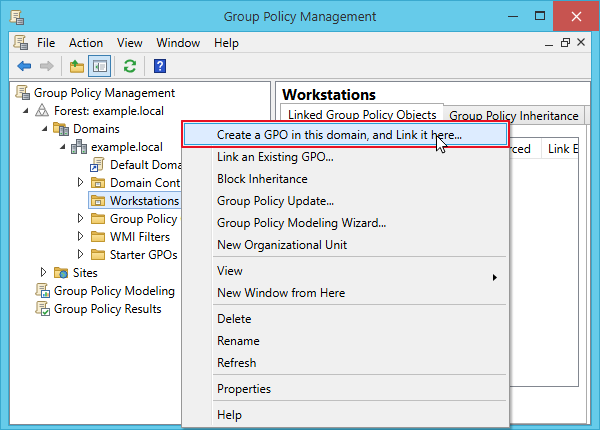
-
Enter the name Deploy UltraViewer and click OK.
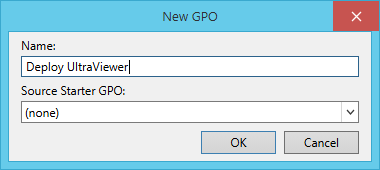
-
Select the new GPO. On the Scope tab, Security Filtering contains Authenticated Users by default. This group includes all computer accounts, so keep it if you want to deploy UltraViewer to every computer in the OU. To deploy only to some computers, replace it with a security group that contains those computer accounts (computers, not users). After you add a computer to the group, restart it so that it picks up the new group membership.
-
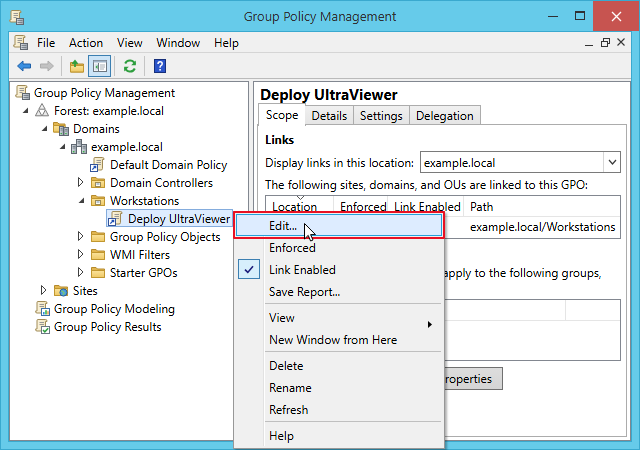
Right-click the GPO Deploy UltraViewer and click Edit...
Note: Do not add the immediate task or the startup script to the Default Domain Policy. It applies to the whole domain, including servers and domain controllers, and Microsoft recommends using it only for account policies (password, account lockout and Kerberos policies).
Step 4. Add the installation to the GPO
Choose one of the two methods below. Method A is recommended because computers install UltraViewer without restarting.
Step 4, Method A (recommended): Immediate task, no restart needed
-
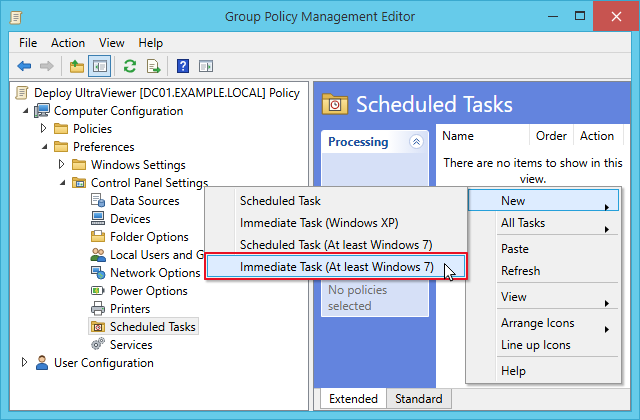
In Group Policy Management Editor, go to Computer Configuration > Preferences > Control Panel Settings > Scheduled Tasks. Right-click an empty area of the right pane (or the Scheduled Tasks node itself), point to New and click Immediate Task (At least Windows 7).
-
On the General tab, in Name, type Install UltraViewer. Click Change User or Group..., type
SYSTEMand click OK, so that the user account becomes NT AUTHORITY\System. Select Run whether user is logged on or not, and select Run with highest privileges.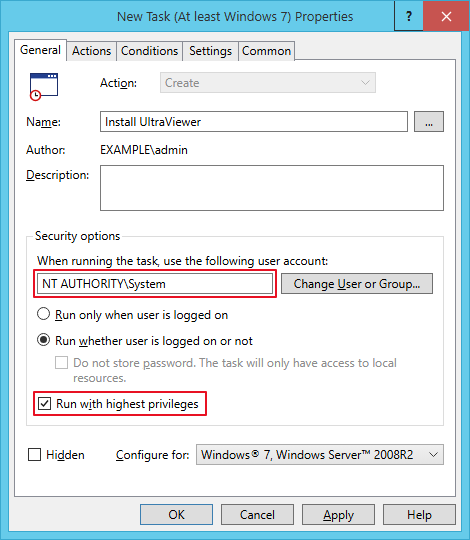
-
On the Actions tab, click New.... In Action, select Start a program. In Program/script, enter
\\FS01\Software\UltraViewer\Install-UltraViewer.cmd, then click OK.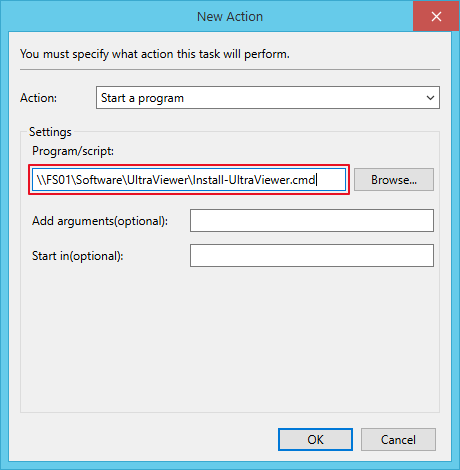
-
On the Conditions tab, first clear Stop if the computer switches to battery power, then clear Start the task only if the computer is on AC power, so that laptops running on battery also install UltraViewer.
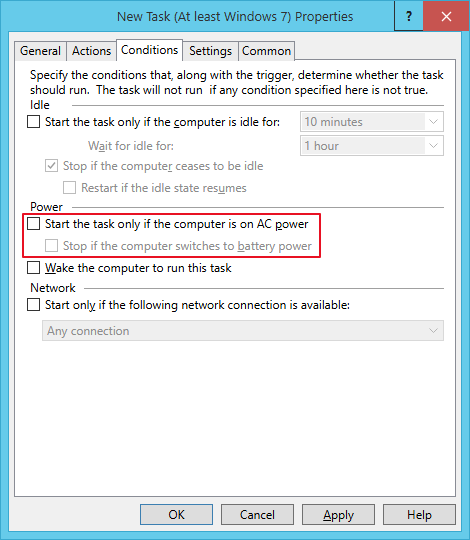
Both options are selected by default. If you leave them selected, a laptop running on battery does not start the task, and the task can be stopped partway through the installation if the laptop is unplugged. Clear them in this order: once Start the task only if the computer is on AC power is cleared, the battery option is grayed out and can no longer be changed.
-
On the Common tab, leave Apply once and do not reapply cleared, then click OK.
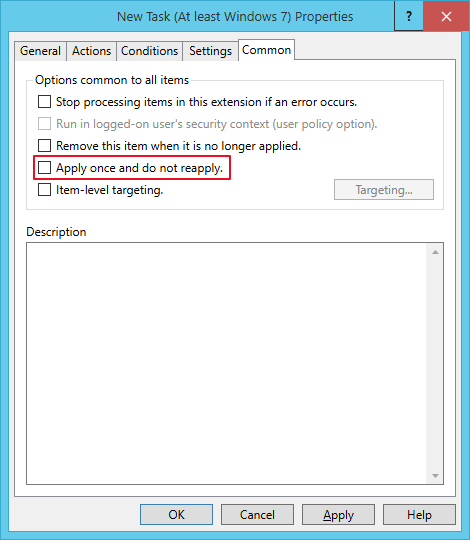
The task then runs again at every Group Policy refresh. This is harmless: the script exits immediately on computers that already have UltraViewer, and a computer whose first attempt failed (for example, because the file server was unreachable) automatically tries again at the next refresh.
The task runs under the SYSTEM account each time the computer applies Group Policy: at startup, and during the background refresh, which by default happens every 90 minutes with a random offset of up to 30 minutes. To start it right away on a computer, run gpupdate /force there (see Step 5). Users can keep working: no restart and no sign-out are needed.
Step 4, Method B: Startup script, installs at the next restart
-
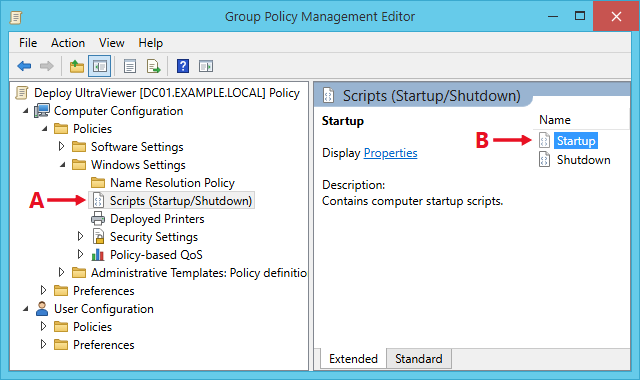
In Group Policy Management Editor, go to Computer Configuration > Policies > Windows Settings > Scripts (Startup/Shutdown) (A), then double-click Startup (B).
-
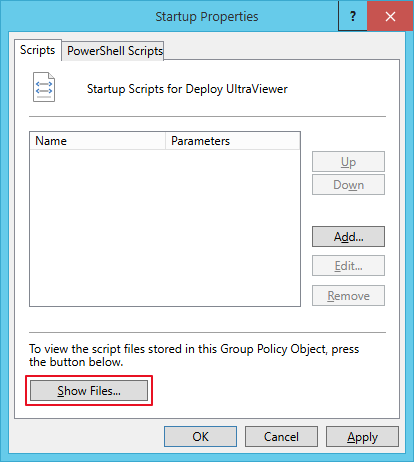
On the Scripts tab of Startup Properties, click Show Files...
-
Copy
Install-UltraViewer.cmdfrom the share (\\FS01\Software\UltraViewer) into the folder that opens, then close the window. This folder is part of the GPO in SYSVOL: it is replicated to all domain controllers, and every computer in the domain can read it.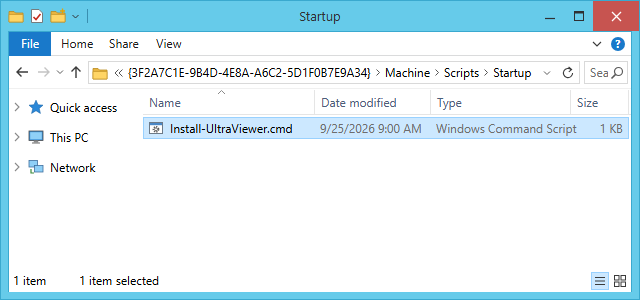
-
Back in Startup Properties, click Add..., then Browse..., select
Install-UltraViewer.cmdand click Open. Leave Script Parameters empty (the switches are already in the script) and click OK.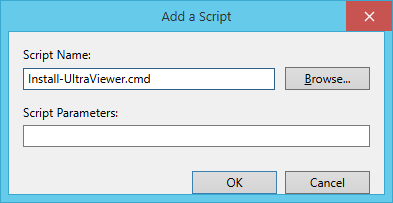
-
The script now appears in the list. Click OK.
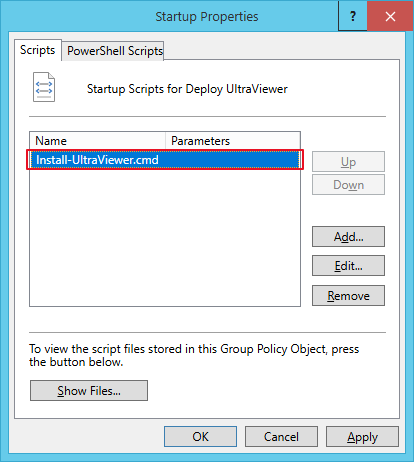
-
Recommended for Method B: make computers wait for the network at startup. In the same GPO, go to Computer Configuration > Policies > Administrative Templates > System > Logon, double-click Always wait for the network at computer startup and logon, select Enabled and click OK.
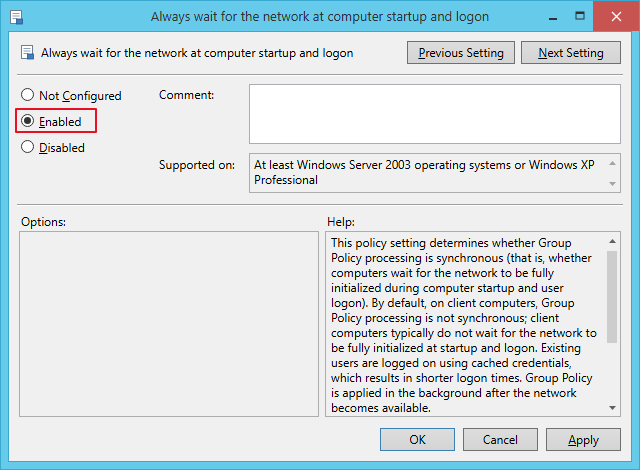
Without this setting, Windows may start before the network is fully ready, and the startup script may not be able to reach the file server.
Note: Startup scripts run only on a full startup. On Windows 10 and Windows 11, Fast startup is turned on by default, so Shut down followed by turning the computer back on does not run startup scripts; Restart always does. Ask users to use Restart, or turn off Fast startup on the computers: in the same GPO, go to Computer Configuration > Preferences > Windows Settings > Registry and create a registry item that sets the REG_DWORD value HiberbootEnabled to 0 in the key HKEY_LOCAL_MACHINE\SYSTEM\CurrentControlSet\Control\Session Manager\Power.
Step 5. Test and verify
-
On a test computer in the OU (PC01 in this example), open Command Prompt as administrator (Run as administrator) and run
gpupdate /force.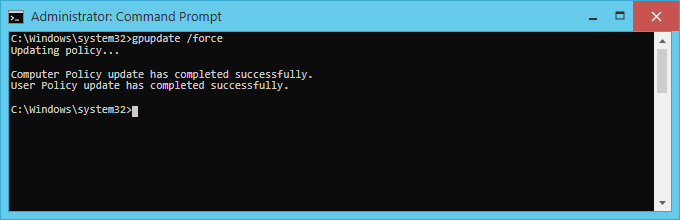
With Method A, the immediate task runs right after the policy update, and UltraViewer is usually installed within a minute, with no restart needed. With Method B, restart the computer (use Restart, not Shut down). If you enabled the Always wait for the network at computer startup and logon policy, the installation runs during startup, before the sign-in screen appears; otherwise, UltraViewer may be installed only after another restart.
-
Run
gpresult /r /scope computerin Command Prompt as administrator. Deploy UltraViewer should be listed under Applied Group Policy Objects.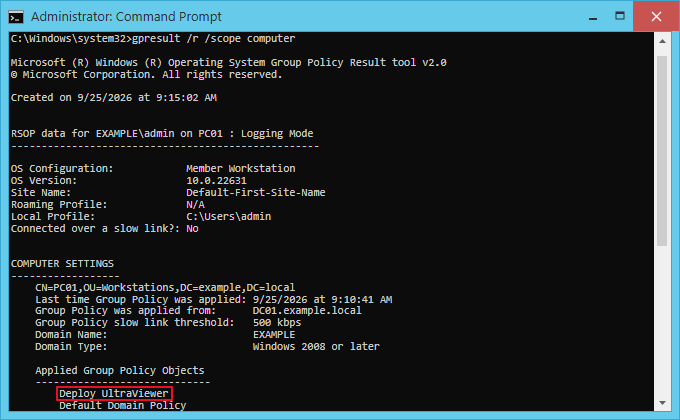
-
Check that UltraViewer appears in Programs and Features. You can also open the log file
C:\Windows\Temp\UltraViewer_install.log.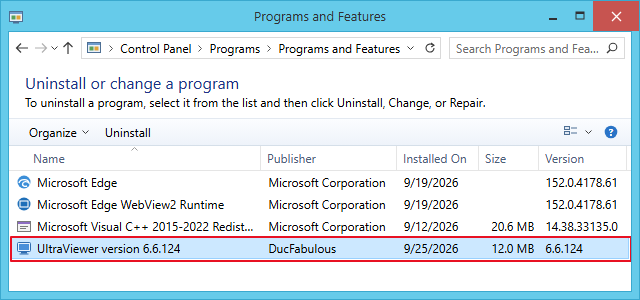
-
With Method A, every computer in the OU installs UltraViewer at its next Group Policy refresh (within about two hours) or at its next startup, whichever comes first. With Method B, each computer installs it at its next restart. Computers added to the OU later receive UltraViewer automatically, and computers that already have it are skipped. To roll out to only a few computers while testing, use Security Filtering as described in Step 3.
Troubleshooting
-
The GPO is not listed by gpresult: make sure the computer account is in the OU where the GPO is linked and is allowed by Security Filtering, then run
gpupdate /forceagain (with Method B, restart the computer). If you have just added the computer to a security group, it picks up the new group membership only after a restart;gpupdatealone is not enough. -
The GPO is applied but UltraViewer is not installed: check the UNC paths (the installer path in the script and, for Method A, the script path in the task), make sure Domain Computers can read the share (both Share and NTFS permissions), and read the setup log. For Method B, also enable the Always wait for the network at computer startup and logon policy. For the meaning of Setup exit codes, see Setup Exit Codes in the Inno Setup documentation.
-
Method A: the immediate task does not seem to run: check that
gpresult /r /scope computerlists the GPO. In Event Viewer > Windows Logs > Application, look for events from the source Group Policy Scheduled Tasks. In the task, make sure the user account is NT AUTHORITY\System and that Domain Computers can read the Program/script UNC path. On laptops, make sure Start the task only if the computer is on AC power is cleared on the Conditions tab; otherwise, the task does not start while the laptop is running on battery. If you selected Apply once and do not reapply and the first attempt failed, the task does not run again on that computer; clear this option. -
Method B: UltraViewer is installed after Restart, but not after Shut down: Fast startup is turned on, so the startup script does not run when the computer is shut down and turned back on. Restart the computer, or turn off Fast startup as described in the note at the end of Method B (Step 4).
-
To test the installation by itself: on one computer, run
\\FS01\Software\UltraViewer\Install-UltraViewer.cmdin Command Prompt as administrator.
Stopping the deployment and uninstalling
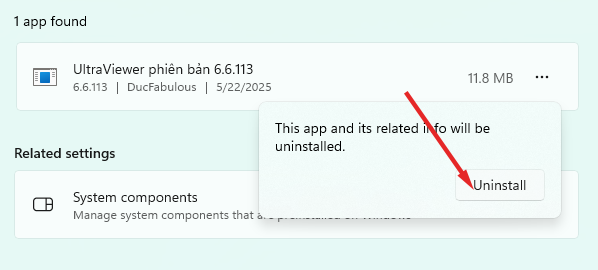
Unlinking or deleting the GPO stops new installations, but it does not remove UltraViewer from computers where it is already installed. To remove UltraViewer silently, first unlink the Deploy UltraViewer GPO (or delete the immediate task or the startup script from it); otherwise, the GPO installs UltraViewer again at the next Group Policy refresh or startup. Then run the following command as administrator, or put it in a startup script:
if exist "%ProgramFiles(x86)%\UltraViewer\unins000.exe" "%ProgramFiles(x86)%\UltraViewer\unins000.exe" /VERYSILENT /SUPPRESSMSGBOXES /NORESTART
The if exist check skips computers where UltraViewer is not installed, so a startup script does not fail at every startup after UltraViewer has been removed. On 32-bit Windows, UltraViewer is installed in C:\Program Files\UltraViewer, so replace %ProgramFiles(x86)% with %ProgramFiles%.
The same method works for other applications whose installers are built with Inno Setup. Installers built with other tools use different silent switches (for example, NSIS uses /S, and Windows Installer uses msiexec /i package.msi /qn), so check the vendor's documentation.






Write comments (Cancel Reply)